Description
- Battery Included: Yes
- High-concerned chemical: None
- Brand Name: Peocke
- Origin: Mainland China
- Feature-1: mili Litag go
- Feature-2: mili tracker for android
- Feature-3: MiLi Smart Tag
- Feature-4: New MiLi Litag Go
- Feature-5: Gps Tracker
- Feature-6: Smart GPS Tracker
- Feature-7: Smart Bluetooth Tracker
- Feature-8: MiLi Smart Bluetooth Tracker
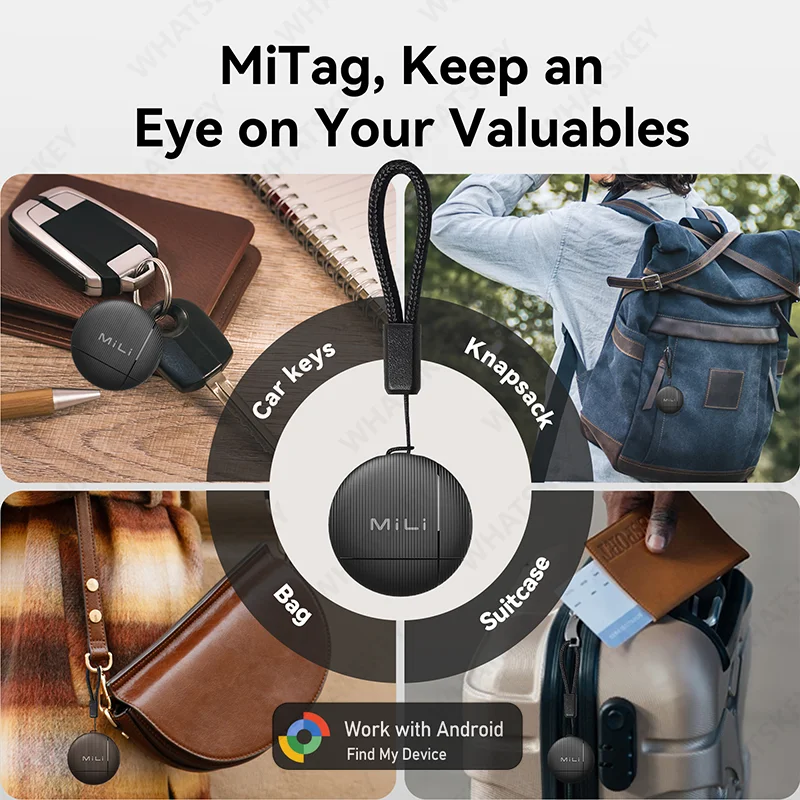
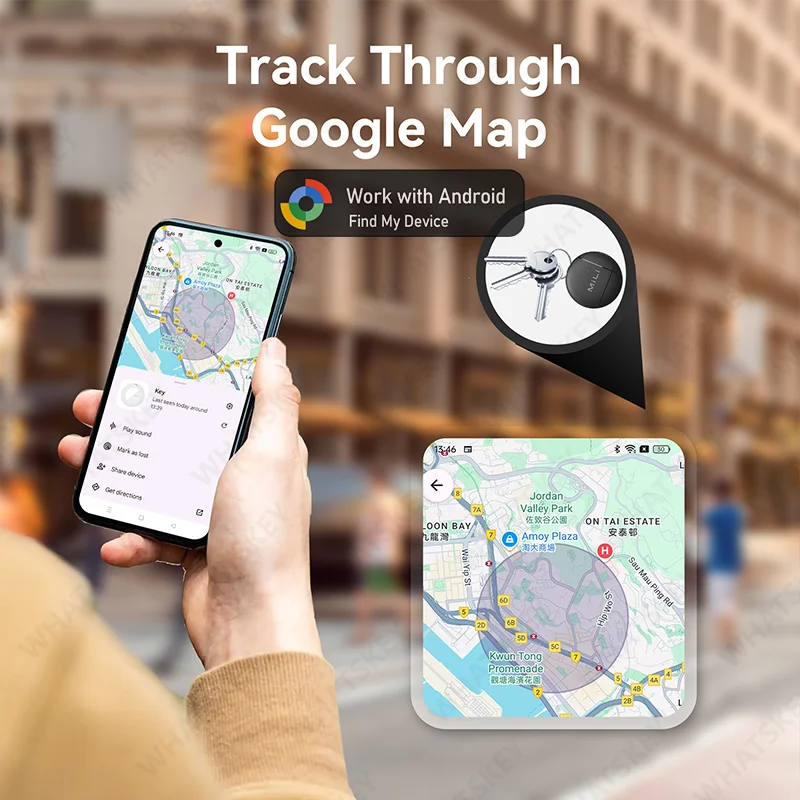
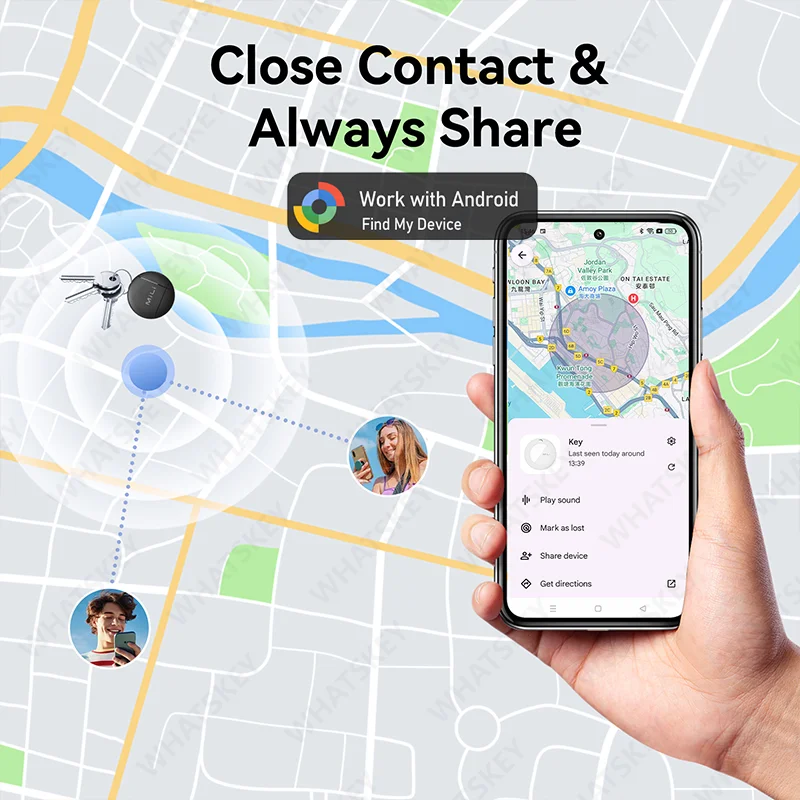
- Feature-9: Work with Google Find Hub Device
- Feature-10: Bluetooth Tracking Tag
Please note before ordering:
💦.This product is not applicable to Huawei series products and Apple products. It is only suitable for the Android system.
💦.And it is not available in the Russian region. Please place your order with caution.
💦.If your mobile phone is from Apple or Huawei, please do not place an order as this product is not supported.
💦. Please note that when connecting, first make sure that your phone can be downloaded from Google and the Android system is above 9.0. Turn on your phone's Bluetooth and WiFi
💦. Connect to the device in Google Find Hub device instead of Bluetooth on the phone
💦.Can't connect to the device? Please follow the steps below to connect Manual Connection Steps
If the automatic popup doesn't appear, follow these steps to connect manually:
1. Open phone settings
2. Go to Google
3. Select All services
4. Go to Devices
5. Turn on Scan for nearby devices
6. View Available devices nearby.
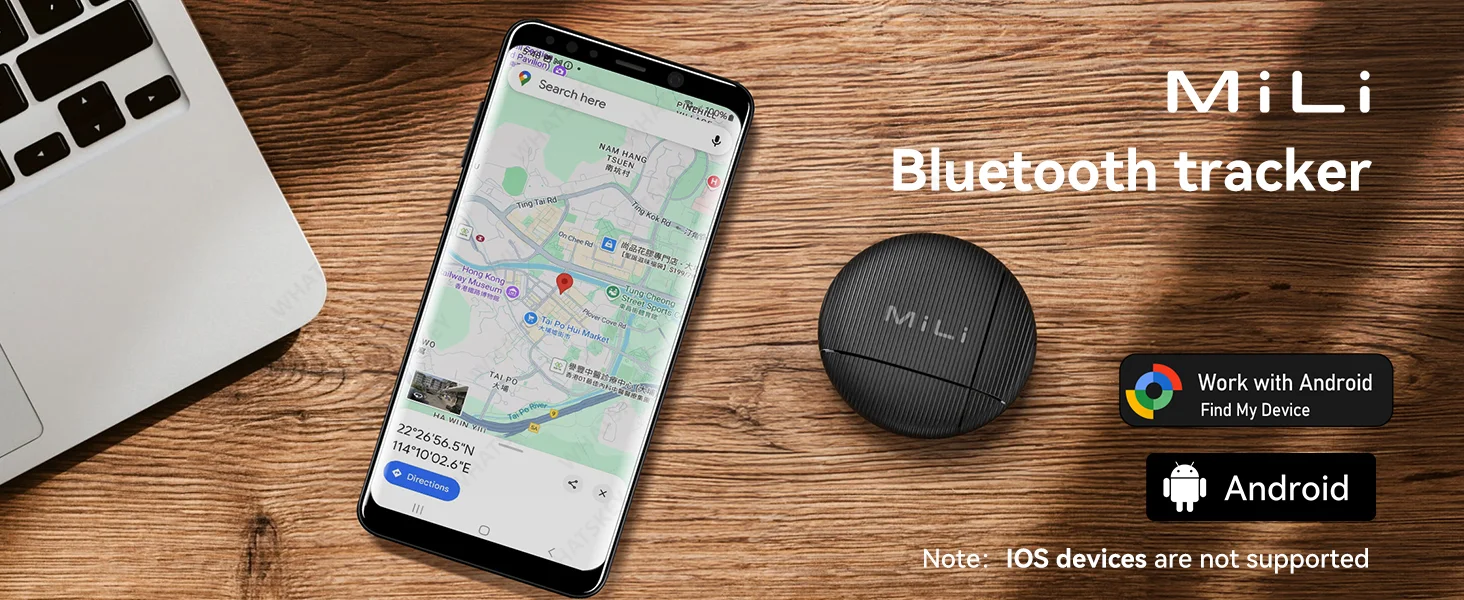
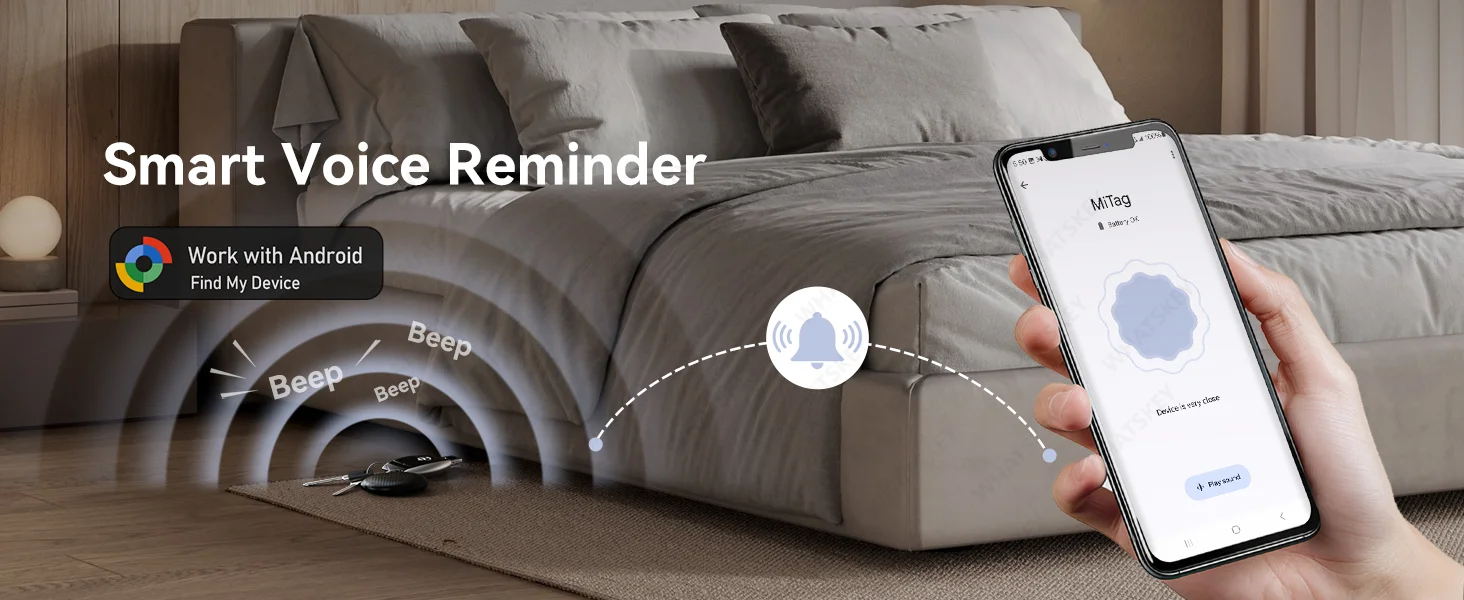
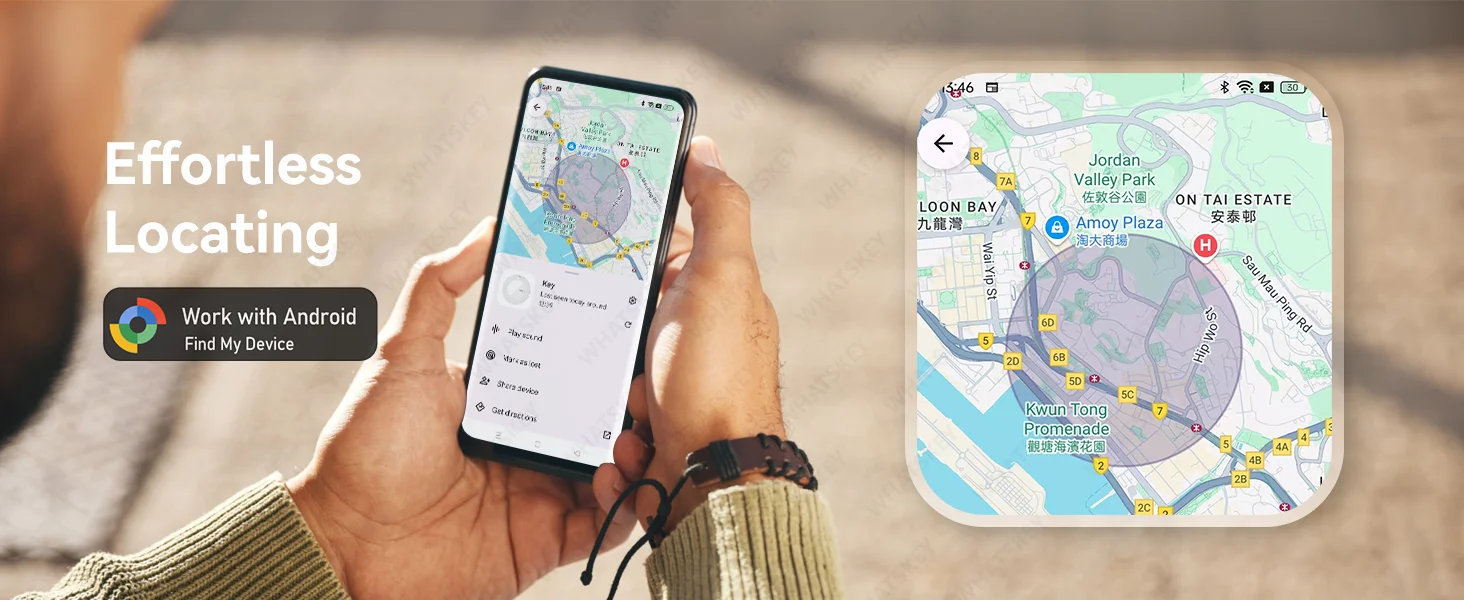
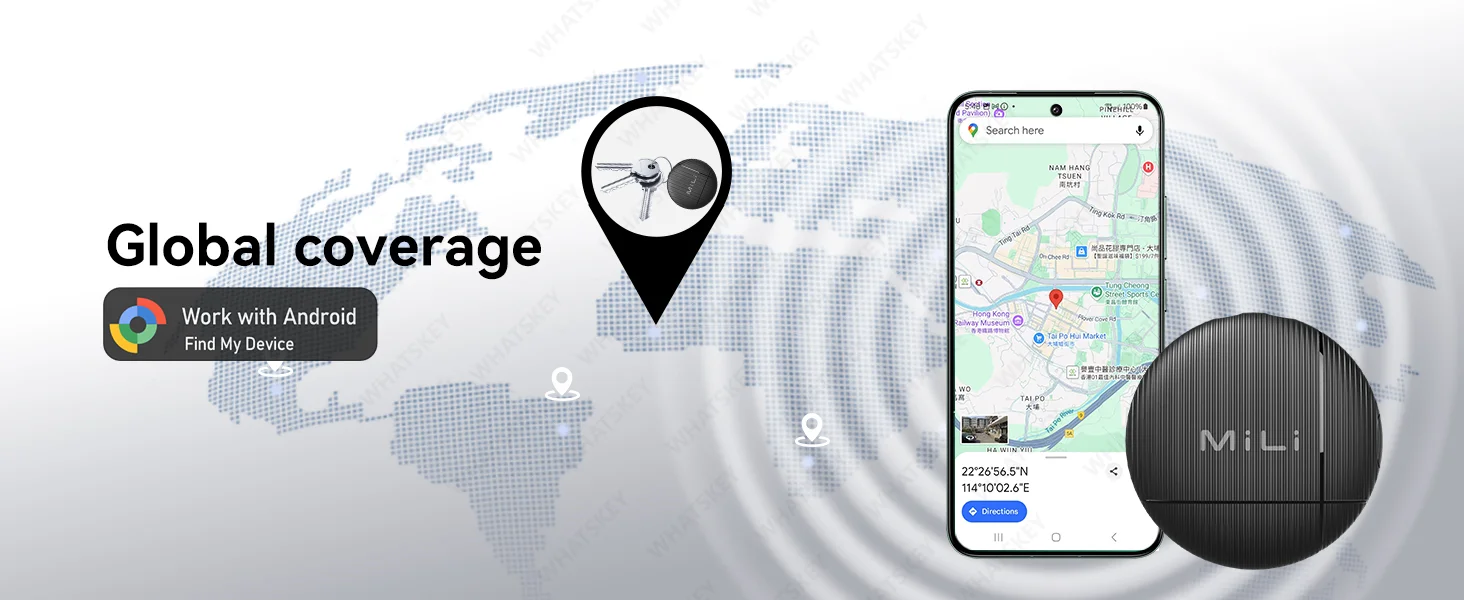
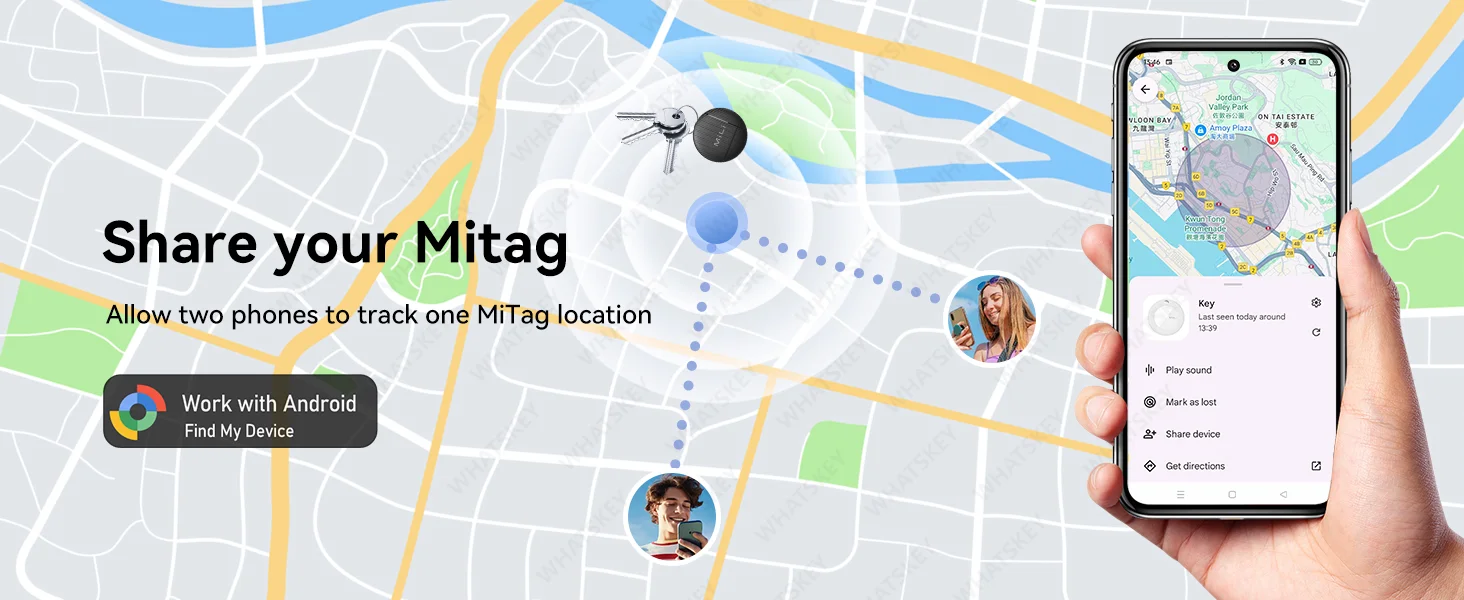
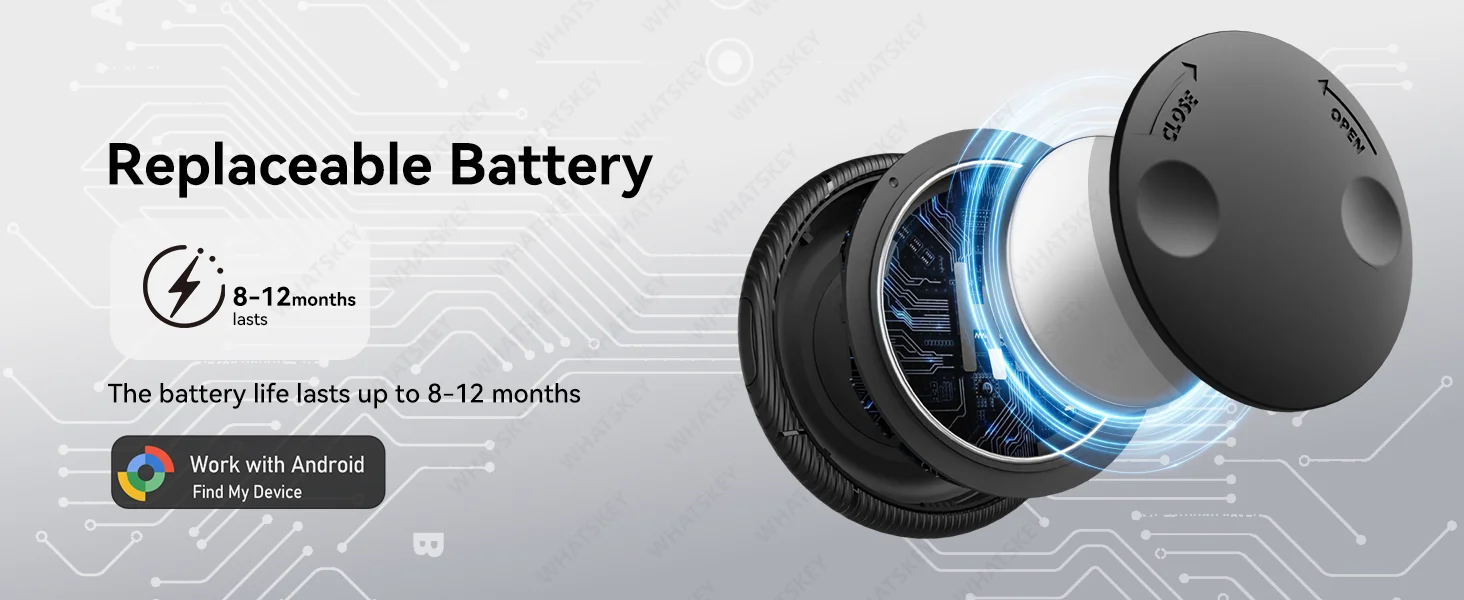
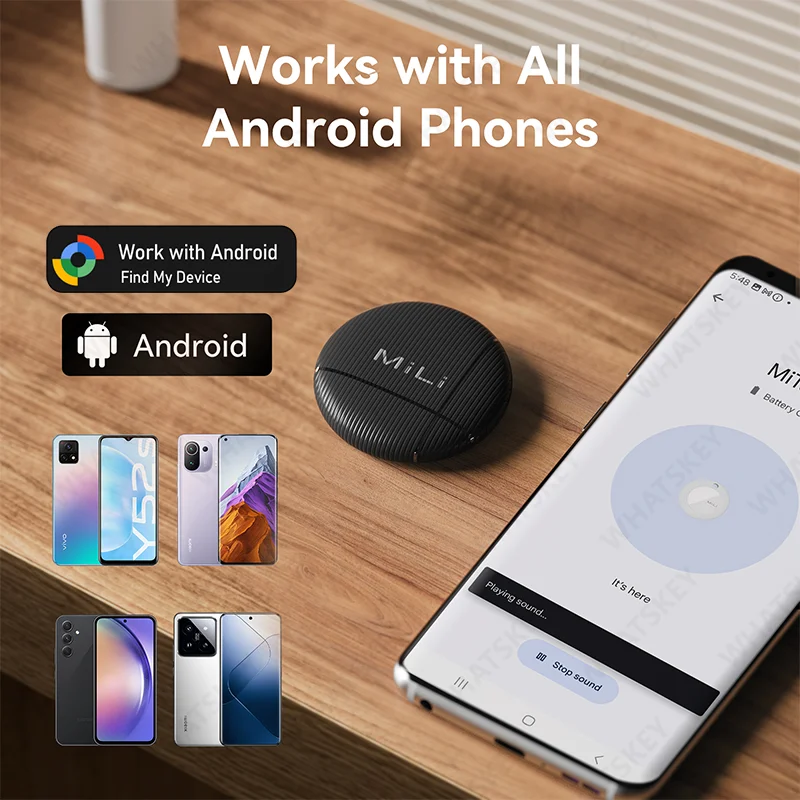
Q1: Why can't my Android phone connect to Tag ?
A: This is usually because the user missed the automatic pop-up window of Tag, you can try to restore the factory settings. Please refer to the product manual
Manual Connection StepsIf the automatic popup doesn't appear, follow these steps to connect manually:
1. Open phone settings
2. Go to Google
3. Select All services
4. Go to Devices
5. Turn on Scan for nearby devices
6. View Available devices nearby
To search for devices from the Google Find Hub APP
Troubleshooting GuideStep 1: Check Google Service Version
1. Open device settings
2. Go to "Google" option and ensure you're logged into your Google account
3. Go to "About phone" option
4. Confirm that Google Play Service version is after March 1st, 2025
By phone model:
•Google Pixel: Android version -> Google Play System Update -> Check for updates
•Samsung: Software information -> Google Play System Update -> Check for updates
Step 2: Check Google Play PermissionsPlease ensure the following permissions are enabled:
•Google Play Service: Enable "Nearby devices" permission
•Google Play Store: Enable "Nearby devices" and "Display over other apps" permissions
Step 3: Manual Connection StepsIf the automatic popup doesn't appear, follow these steps to connect manually:
1.Open phone settings
2. Go to Google
3. Select All services
4. Go to Devices
5.Turn on Scan for nearby devices
6. View Available devices nearby
Common Issues and SolutionsStill no popup after system update?
1. Restart your phone
2. Reset device: Press quickly four times, then press and hold on the fifth time until you hear confirmation sound
Can't find the device? • Ensure Bluetooth is enabled
•Ensure device is within range (usually within 10 meters)
•Try restarting Bluetooth service
Pairing failed? • Check if network connection is normal
•Ensure Google account is properly logged in
•Try clearing Google Play Service cache and retry







Reviews
There are no reviews yet.